
When building product configurations, there are cases where customers must make a selection before completing their customization. This is especially common for important product attributes such as colors, materials, finishes, or required components. WP 3D Configurator provides two useful features for handling these scenarios: Required Groups and Multiple Mesh Selection.
Required Groups
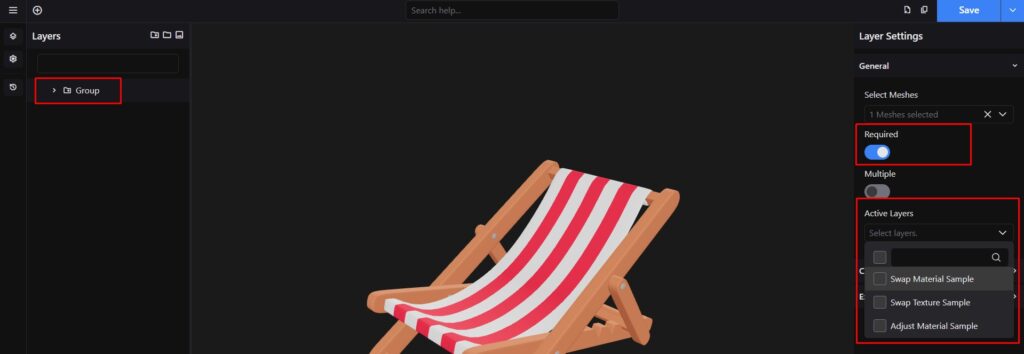
The Required option ensures that customers must select at least one option from a group before proceeding with their product configuration.
This feature is useful for essential customization sections where a selection should never be skipped.
Common Use Cases
- Product Color
- Material Selection
- Size Selection
- Required Accessories
- Mandatory Components
For example, if you are configuring a football helmet, the customer should always select a chin strap color before finalizing the product. By enabling the Required setting on the group layer, the configurator ensures that at least one option inside that group remains active.
How to Enable Required
- Select the parent Group Layer
- Open the Layer Settings
- Locate the Required toggle
- Enable the setting
Once enabled, users will be required to keep at least one option selected from that group.
Example
In the helmet demo:
- Group Layer:
Chin Straps - Options:
- Yellow
- Green
- Gray
By enabling Required, the customer cannot leave the chin strap configuration empty. One of the available options must remain selected.
Multiple Mesh Selection
The Multiple Mesh Selection feature allows a single option layer to control multiple meshes at the same time.
Instead of creating separate configuration sections for every mesh, you can combine them into a single configurable option.
This is especially useful when different parts of the product should always share the same appearance, such as:
- Same color
- Same texture
- Same material
- Same finish
Example Use Case
In the helmet configurator demo:
ChinPadChin_straps
Both meshes should always have the same color.
Rather than creating two separate color selectors, you can assign both meshes to a single option layer. When the customer changes the color, both meshes update simultaneously.
This creates a cleaner and more user-friendly configurator experience.